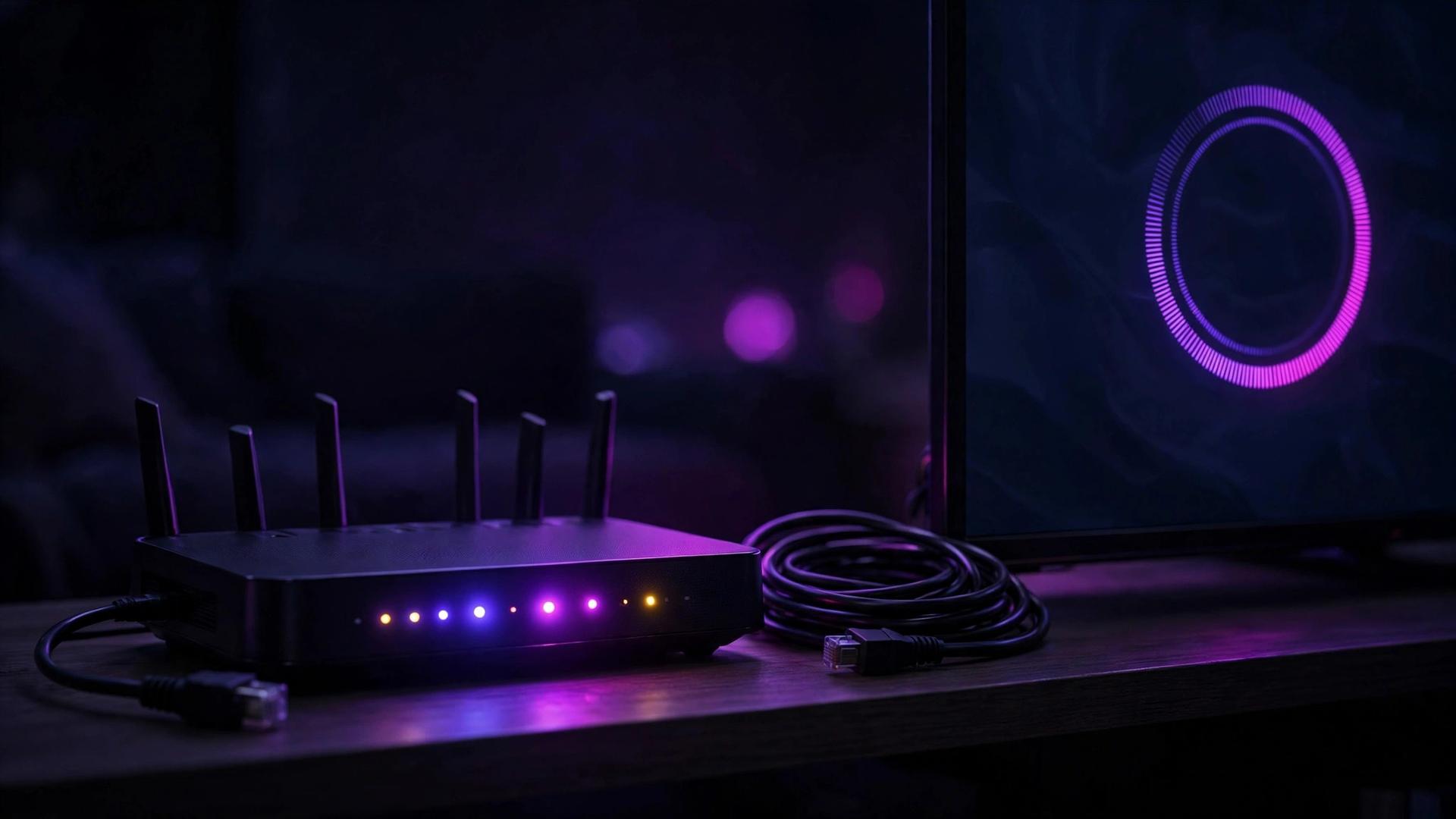
Spinning circles. Freezing mid-match. A picture that drops to low quality right when the game gets good. A tivimate playlist buffering fix is usually a network fix, not a playlist fix — and the network is yours to fix. Five causes cover almost every case. Test at 8pm, when the network is at its worst.
Test at the right time: buffering that only happens during a big match at 8pm is a different problem from buffering that happens on every channel all day. The first points to peak-time load, the second to your home network. Run the checks below during a busy evening so you are testing the worst case, not the easiest one. Test at 8pm.
TiviMate Playlist Buffering Fix: Measure Your Speed First
Open a speed test on the same device that runs TiviMate — not on your phone in another room. Aim for roughly 10 Mbps for HD and roughly 25 Mbps for 4K, with a little headroom above that, because live streams do not tolerate dips the way downloads do. Measure on the TV.
If the speed on the TV is much lower than on your phone, the TV's Wi-Fi signal is the problem: move the router closer, move the Firestick away from the back of the TV, or switch to the 5 GHz band.
Step 2: clear the local bottlenecks
Restart your router and your streaming device — not just the app, the hardware. A router that has run for weeks without a restart slows down, and a Firestick with less than 1 GB free starts struggling with large playlists. Clear the TiviMate cache in the device app settings, close background apps, and unplug any USB devices you are not using. Wi-Fi first. Playlist second.
- Run a speed test on the TV itself — 10 Mbps for HD, 25 Mbps for 4K.
- Use 5 GHz Wi-Fi or Ethernet; move the stick away from the TV back.
- Restart the router and the streaming device, not just the app.
- Free at least 1 GB of storage and clear the TiviMate cache.
- Pause cloud backups and game downloads during live events.
- Try a different channel group to check whether one server is loaded.
Step 3: tune TiviMate's player settings
Inside TiviMate, go to Settings, Playback and check the decoder. On most devices the hardware decoder is fastest; if a channel stutters on hardware decoding, try switching to software decoding for that stream. Also check the buffer size setting if your version shows it — a larger buffer smooths out short network dips, at the cost of a slightly slower channel start.
Turn off any VPN for a test. Some VPN servers add delay and cut speed in half, which is enough to make 4K buffer constantly. If the stream is smooth without the VPN, the VPN server is the problem — try a closer server or a different provider. Also update TiviMate itself: newer versions handle large playlists and streams more efficiently than old ones. Peak time tells the truth.
Step 4: check whether it is the server, not you
If one channel buffers while others play perfectly, the problem is that channel's server, not your home. Switch to another channel showing the same match — major games are often carried on more than one channel — or wait a few minutes for the provider to rebalance the load. If every channel buffers at the same time of day but is fine at midnight, your internet provider may be throttling video traffic at peak time, and a good VPN can actually help in that specific case.
Plans and free trial
Buffering is rarely a reason to change plan, but the numbers help: Premium is $19.99 for a month or $99.99 for the year (about $8.33 a month), with 57,000+ channels, 185,000+ movies and 49,000+ series in up to 4K and 8K. Basic is $14.99 a month or $59.99 a year, with 10,000+ channels and 80,000 titles in HD and Full HD. The 3- and 6-month prices are in the table below. Every plan starts with a 24-hour free trial, no card — activate it on WhatsApp +212 604 034 330. One channel is not proof.
When the playlist will not load at all, the not-loading fixes come first — buffering is what happens after it loads. On a Firestick, the Firestick guide covers the stick-specific setup. And if the stuttering only hits the Ultra HD channels, the 4K guide explains the speed and device requirements.
| Plan | Channels | VOD | Quality | Price |
|---|---|---|---|---|
| Premium 1 month | 57,000+ | 185,000+ movies, 49,000+ series | HD/FHD/4K/8K | $19.99 |
| Premium 3 months | 57,000+ | 185,000+ movies, 49,000+ series | HD/FHD/4K/8K | $49.99 |
| Premium 6 months | 57,000+ | 185,000+ movies, 49,000+ series | HD/FHD/4K/8K | $79.99 |
| Premium 12 months | 57,000+ | 185,000+ movies, 49,000+ series | HD/FHD/4K/8K | $99.99 |
| Basic 1 month | 10,000+ | 80,000 titles | HD/FHD | $14.99 |
| Basic 12 months | 10,000+ | 80,000 titles | HD/FHD | $59.99 |
TiviMate Playlist Buffering Fix: Peak-Time Checks That Work
The most useful buffering test is a peak-time test. A playlist that plays perfectly at midday and buffers at 9pm on a Saturday is usually fighting for bandwidth in your own home or on your street, not failing on the provider’s side. Test the same channel at a quiet hour, then test it again at peak time, and compare. If only peak time buffers, try a wired connection, move closer to the router, or ask others in the house to pause downloads while the match is on.
- Restart the router and the device, then test again.
- Test a different channel in the same group.
- Test the same channel on another device.
- Try a wired connection instead of Wi-Fi.
- Test with your VPN off, then on, and compare the two.
Changing the player settings inside TiviMate can also help: the app lets you pick a different decoder, and some Firesticks play more smoothly with hardware decoding switched off for one stubborn channel. Do not change everything at once — change one setting, test one channel, and note what helped. Fix the network. Keep the playlist.
If every channel buffers on every device at every hour, that points at the internet connection or the playlist itself. That is the moment to message support with your speed-test result, your device, and whether you are on Wi-Fi or Ethernet. Those three details let them help you in one reply instead of five.
Test at 8pm
Run the speed test on the TV itself during a busy evening, fix what it shows, and only then blame the playlist. Peak time is the only honest test. The 24-hour free trial exists for exactly that: judge the streams when the network is at its worst, not at midday.