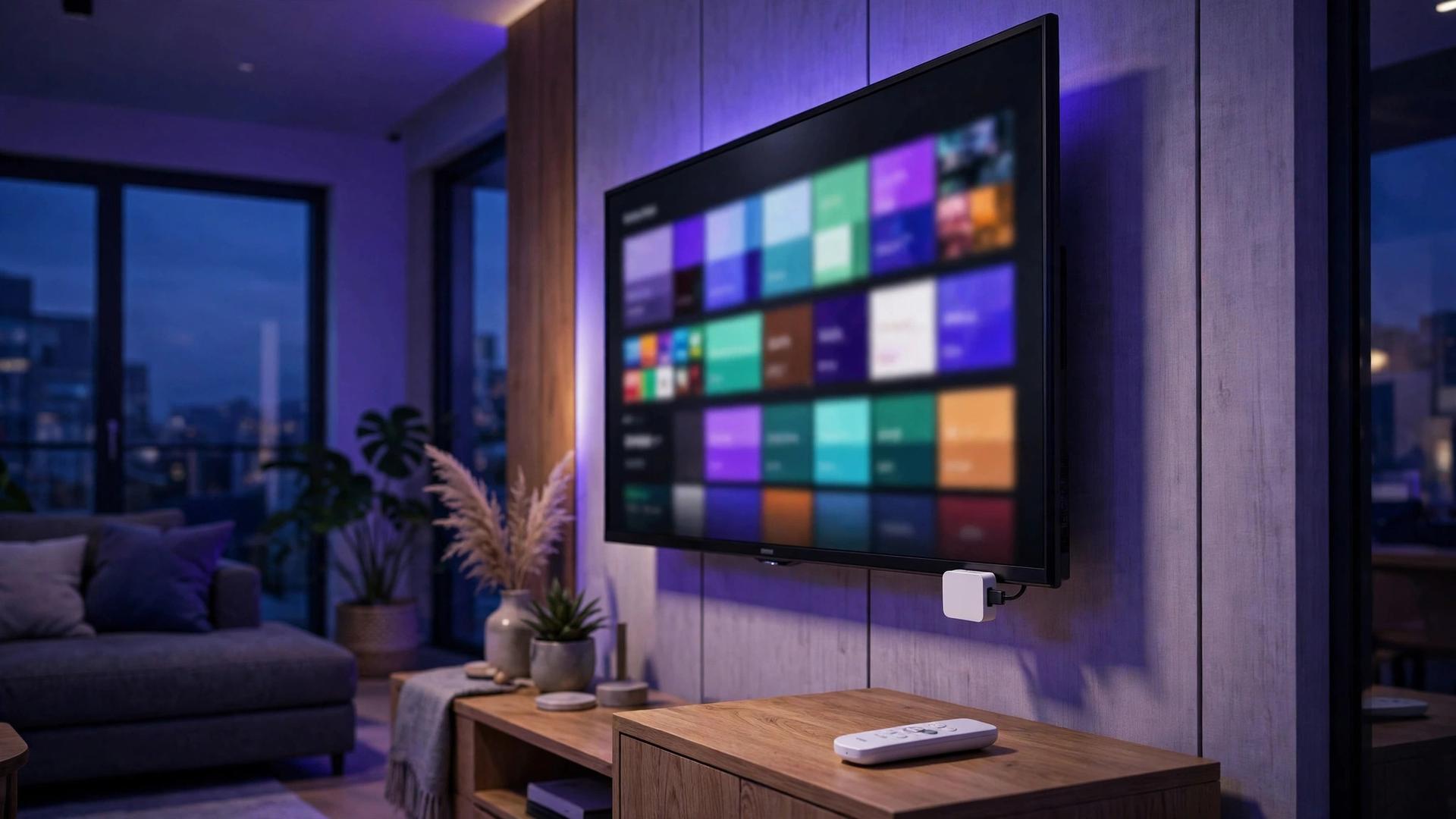
The Chromecast with Google TV is a small white pebble that turns any HDMI port into a full Android TV box. A tivimate playlist chromecast google tv setup starts in the Play Store and ends with a working guide — no sideloading, no USB stick. Google's dongle runs the same Android TV system as a Sony or TCL set, so TiviMate installs from the official store.
TiviMate Playlist Chromecast Google TV: Install From Google Play
Plug the Chromecast into a spare HDMI port and power it from the wall socket, not the TV's USB port — many TVs deliver too little power, and a starved Chromecast reboots halfway through a match. Once the dongle is set up in the Google Home app, open the Google Play Store, search for TiviMate IPTV Player, and install it.
Open TiviMate and the app asks you to add a playlist. Go to Settings, then Playlists, then Add playlist. You have two ways in: paste an M3U URL, or enter Xtream Codes login details — server address, username and password. Your provider sends one of the two after your trial or plan is activated, usually on WhatsApp.
- Plug the Chromecast into HDMI and power it from the wall socket.
- Open the Google Play Store on the home screen.
- Search for TiviMate IPTV Player and install it.
- Open TiviMate, go to Settings, then Playlists, then Add playlist.
- Choose M3U and paste the URL, or choose Xtream Codes and enter the login details.
- Add the EPG URL, name the playlist, tap Next, and wait.
M3U URL or Xtream Codes — which login to use
The M3U link is a single paste and the fastest route. Xtream Codes asks for three fields, but it has one clear advantage: TiviMate pulls the EPG automatically from the same login, so there is no separate programme guide URL to copy. Copy the details exactly — one wrong character kills the import, and the error will not tell you which one.
The Voice Remote: Small Buttons, Big Shortcuts
The Chromecast voice remote looks too simple to be useful, and that is why people underuse it. The round OK button selects, the back arrow returns, and a long-press on OK opens the options menu — the place to add a channel to favourites or open the EPG for that channel. Hold the Assistant button and say a channel name, and TiviMate opens it if the channel is in your playlist.
Chromecast 4K vs HD vs Google TV Streamer for TiviMate
All three Google devices run TiviMate, but not equally. The 4K model has the stronger chip and the extra memory: menus stay quick and channel changes take a second or two. The HD model struggles with a 57,000-channel playlist — the import takes longer and the guide lags when you flick through it fast. The Google TV Streamer is the strongest of the three, with a faster processor, 32 GB of storage and an Ethernet port.
| Device | Price range | Max output | Storage | TiviMate verdict |
|---|---|---|---|---|
| Chromecast 4K | Around $50 | 4K HDR | 8 GB | Best value for TiviMate |
| Chromecast HD | Around $30 | 1080p HDR | 8 GB | Works, slow with big playlists |
| Google TV Streamer | Around $100 | 4K HDR | 32 GB | Fastest, Ethernet for live TV |
| Firestick 4K Max | Around $60 | 4K HDR | 16 GB | Strong rival, more storage |
TiviMate on Chromecast vs Firestick 4K Max
The Firestick 4K Max is the other stick most TiviMate users compare, and both are good, with different trade-offs. The Firestick has double the storage of the Chromecast 4K and a slightly faster feel in the menus. The Chromecast has the cleaner Google TV home screen, proper Google Assistant, and a Play Store install with no sideloading — TiviMate on a Firestick has to be installed from a downloaded APK.
The setup steps on the Firestick are close cousins of the Chromecast ones, with the APK step added at the start. The Firestick setup guide walks through that install and the same M3U and Xtream Codes import. The Android TV setup covers Sony, TCL and Hisense sets, which run the same TiviMate build as the Chromecast.
Using Chromecast to Fix a Samsung or LG TV
Samsung and LG TVs run their own systems — Tizen and webOS — and neither one has TiviMate in its app store. That is the most common reason people buy a Chromecast: the TV is fine, the screen is fine, the missing piece is an app store with TiviMate in it. Plug the dongle into any spare HDMI port and switch the TV input to it.
Common Problems and Quick Fixes
Most Chromecast and TiviMate problems have boring causes, and the boring fix is usually the right one. A playlist that refuses to load is almost always a copied link with a missing character or an extra space — re-paste it from the original WhatsApp message, don't retype it from memory. An empty guide means the EPG URL is missing or wrong.
- Playlist will not import: re-paste the URL from the original message and check for a missing character.
- Guide is empty: add or correct the EPG URL in Settings, then Playlists.
- Buffering on one channel: try another channel in the same group before blaming the dongle.
- Menus feel slow: hide unused channel groups, clear the app cache, and restart the Chromecast.
- Remote stops responding: replace the batteries and re-pair it in the remote settings.
Plans, Prices and the 24-Hour Free Trial
Before you pay for anything, test the playlist on your own Chromecast with a 24-hour free trial — no card required. Message WhatsApp +212 604 034 330 and the login details arrive within minutes. Open the [free trial plans](https://www.tivimate-playlist.com/plans) page to see every option, then load the trial playlist and test your usual channels.
Premium costs $19.99 for one month, $49.99 for three months, $79.99 for six months and $99.99 for twelve months, with 57,000+ channels, 185,000+ movies and 49,000+ series in HD, Full HD, 4K and 8K. Multi-device Premium is $159.99 for two devices, $224.99 for three and $269.99 for four on a 12-month plan. Basic is $14.99, $24.99, $39.99 and $59.99 for one, three, six and twelve months, with 10,000+ channels and 80,000 on-demand titles in HD and Full HD only, and $109.99, $159.99 and $199.99 for two, three and four devices over twelve months. If you run several playlists at once, the multiple playlists guide shows how Premium keeps them separate.